Program Options
Open Options from the Home / Task Screen left navigation panel, from the widget tools menu, or from the editor File tab. The Program Options window has a left category list and Reset, OK, and Cancel buttons.
Contents
- General
- Editor
- Capture
- File Name
- Auto Save
- Images
- Recording
- Hotkeys
- About
1. General
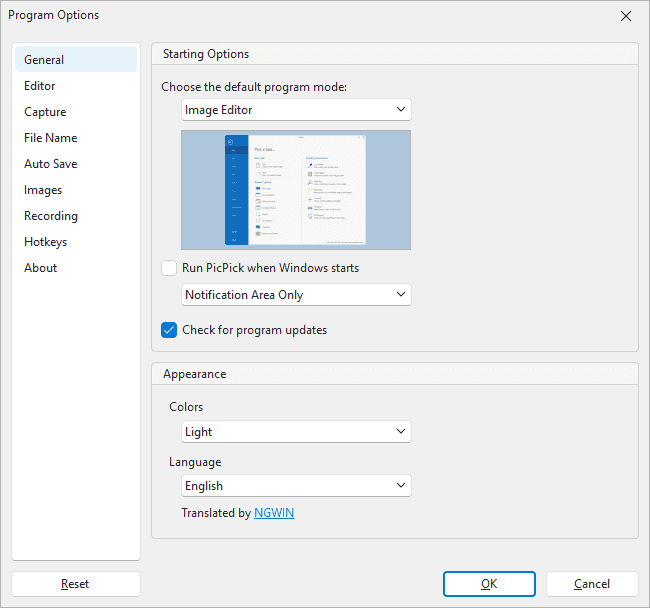
1.1 Starting Options
| Setting |
Screenshot value |
Description |
| Choose the default program mode |
Image Editor |
Sets what PicPick opens when it launches. The dropdown can be used to choose another startup mode such as the Home / Task Screen. |
| Run PicPick when Windows starts |
Unchecked |
Starts PicPick automatically when Windows starts. |
| Startup mode |
Notification Area Only |
Controls how PicPick appears at startup. Notification Area Only keeps it available from the system tray instead of opening a full window. |
| Check for program updates |
Checked |
Allows PicPick to check for newer versions. |
1.2 Appearance
| Setting |
Screenshot value |
Description |
| Colors |
Light |
Sets the PicPick interface theme. |
| Language |
English |
Sets the interface language. |
| Translated by |
NGWIN |
Shows translation credit for the selected language. |
2. Editor
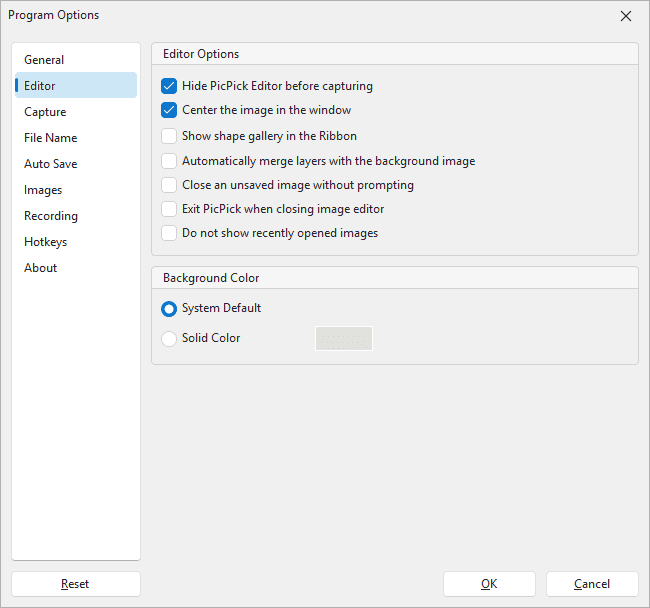
2.1 Editor Options
| Setting |
Screenshot state |
Description |
| Hide PicPick Editor before capturing |
Checked |
Hides the editor window before a screenshot is taken so it does not appear in the capture. |
| Center the image in the window |
Checked |
Centers opened images in the editor workspace. |
| Show shape gallery in the Ribbon |
Unchecked |
Shows a shape gallery in the ribbon when enabled. |
| Automatically merge layers with the background image |
Unchecked |
Merges annotation layers into the background image automatically. |
| Close an unsaved image without prompting |
Unchecked |
Allows unsaved images to close without a confirmation prompt. |
| Exit PicPick when closing image editor |
Unchecked |
Exits PicPick when the editor closes. |
| Do not show recently opened images |
Unchecked |
Hides the recent image list. |
2.2 Background Color
| Setting |
Screenshot state |
Description |
| System Default |
Selected |
Uses the system default workspace background color. |
| Solid Color |
Not selected |
Uses a custom workspace background color. The color box is enabled when this option is selected. |
3. Capture
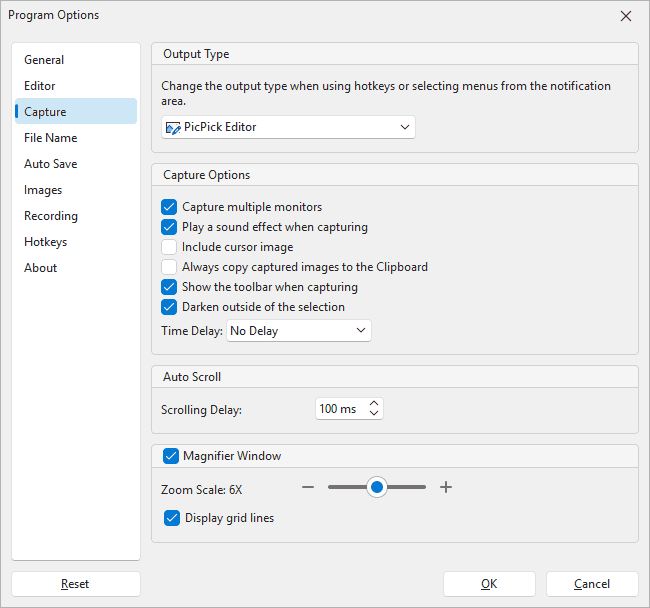
3.1 Output Type
| Setting |
Screenshot value |
Description |
| Output Type |
PicPick Editor |
Controls where screenshots go when using hotkeys or notification-area menus. The screenshot shows captures opening in the editor. |
3.2 Capture Options
| Setting |
Screenshot state/value |
Description |
| Capture multiple monitors |
Checked |
Includes multiple monitors when capturing the full desktop. |
| Play a sound effect when capturing |
Checked |
Plays a sound when a capture is taken. |
| Include cursor image |
Unchecked |
Includes the mouse cursor in captured images when enabled. |
| Always copy captured images to the Clipboard |
Unchecked |
Copies every capture to the clipboard in addition to the selected output. |
| Show the toolbar when capturing |
Checked |
Shows a capture toolbar during selection-based captures. |
| Darken outside of the selection |
Checked |
Dims the area outside the selected capture region. |
| Time Delay |
No Delay |
Adds a delay before a capture starts. |
3.3 Auto Scroll
| Setting |
Screenshot value |
Description |
| Scrolling Delay |
100 ms |
Sets the delay between automatic scroll steps during scrolling-window capture. |
3.4 Magnifier Window
| Setting |
Screenshot state/value |
Description |
| Magnifier Window |
Checked |
Shows a magnified preview during capture selection. |
| Zoom Scale |
6X |
Sets the magnification level. |
| Display grid lines |
Checked |
Displays grid lines in the magnifier window. |
4. File Name
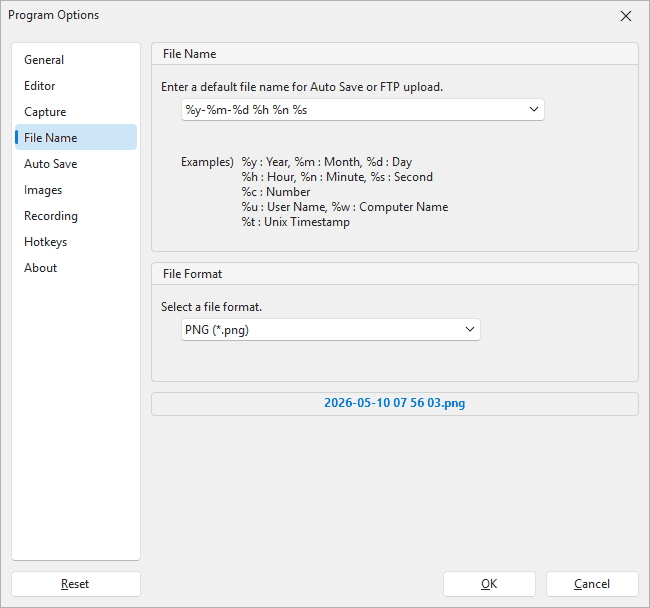
4.1 File Name Pattern
The File Name page sets the default file name used for Auto Save or FTP upload.
| Setting |
Screenshot value |
Description |
| Default file name |
%y-%m-%d %h %n %s |
Defines the automatic name pattern. |
| Example output |
2026-05-10 07 56 03.png |
Shows the resulting file name preview. |
| Variable |
Inserts |
%y |
Year |
%m |
Month |
%d |
Day |
%h |
Hour |
%n |
Minute |
%s |
Second |
%c |
Number |
%u |
User Name |
%w |
Computer Name |
%t |
Unix Timestamp |
4.2 File Format
| Setting |
Screenshot value |
Description |
| Select a file format |
PNG (*.png) |
Sets the default file format for saved captures. |
5. Auto Save
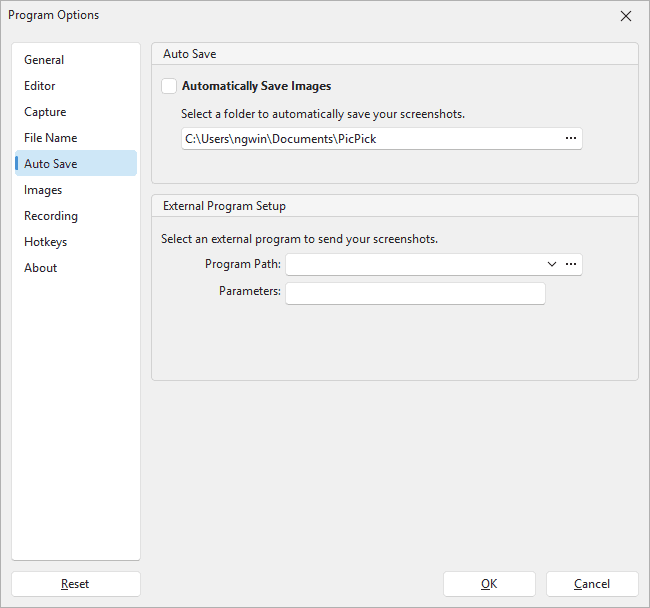
5.1 Auto Save
| Setting |
Screenshot state/value |
Description |
| Automatically Save Images |
Unchecked |
Saves captured images automatically when enabled. |
| Folder |
C:\Users\ngwin\Documents\PicPick |
Destination folder for auto-saved screenshots. |
| Browse button (...) |
Visible |
Opens a folder picker. |
5.2 External Program Setup
| Setting |
Purpose |
| Program Path |
Selects an external program to receive screenshots. |
| Parameters |
Sets command-line parameters passed to the external program. |
6. Images
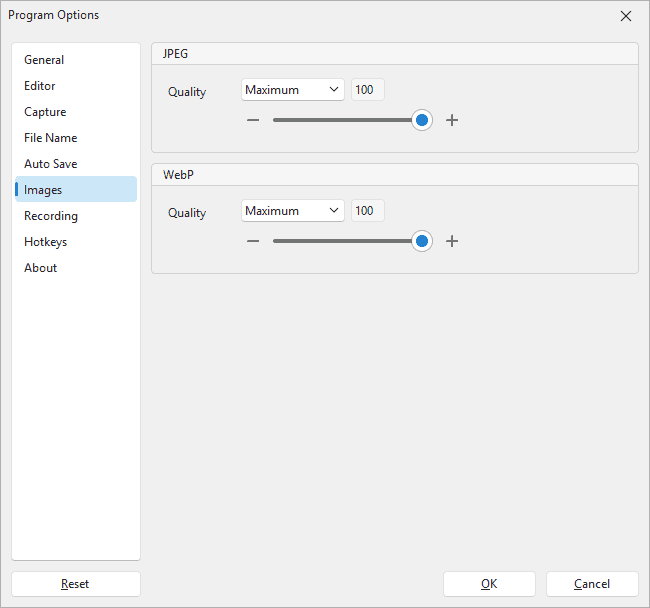
6.1 JPEG
| Setting |
Screenshot value |
Description |
| Quality |
Maximum, 100 |
Controls JPEG compression quality. Higher values produce higher quality and larger files. |
6.2 WebP
| Setting |
Screenshot value |
Description |
| Quality |
Maximum, 100 |
Controls WebP compression quality. Higher values produce higher quality and larger files. |
7. Recording
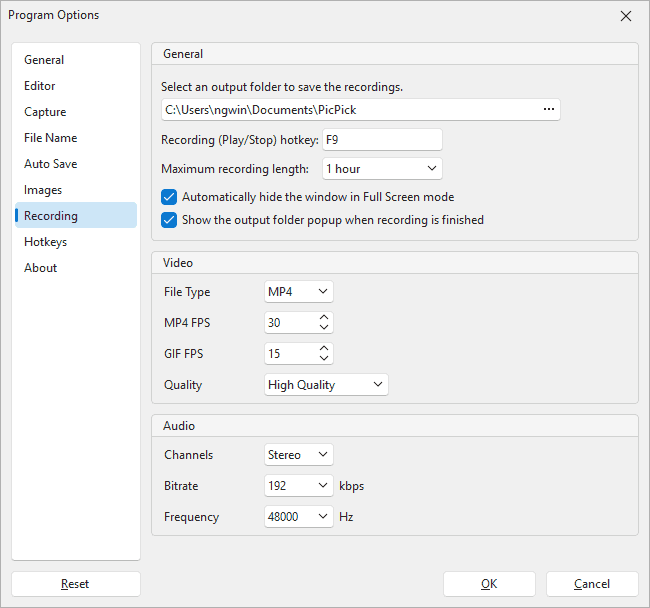
7.1 General
| Setting |
Screenshot value |
Description |
| Output folder |
C:\Users\ngwin\Documents\PicPick |
Folder where recordings are saved. |
| Recording (Play/Stop) hotkey |
F9 |
Starts and stops recording. |
| Maximum recording length |
1 hour |
Stops recording automatically after the selected limit. |
| Automatically hide the window in Full Screen mode |
Checked |
Hides the recorder window during full-screen recording. |
| Show the output folder popup when recording is finished |
Checked |
Opens or shows the output folder after recording finishes. |
7.2 Video
| Setting |
Screenshot value |
Description |
| File Type |
MP4 |
Selects the recording output format. |
| MP4 FPS |
30 |
Frame rate for MP4 recordings. |
| GIF FPS |
15 |
Frame rate for GIF recordings. |
| Quality |
High Quality |
Sets recording quality. Higher quality usually creates larger files. |
7.3 Audio
| Setting |
Screenshot value |
Description |
| Channels |
Stereo |
Records two audio channels. |
| Bitrate |
192 kbps |
Sets audio bitrate. |
| Frequency |
48000 Hz |
Sets audio sample rate. |
8. Hotkeys
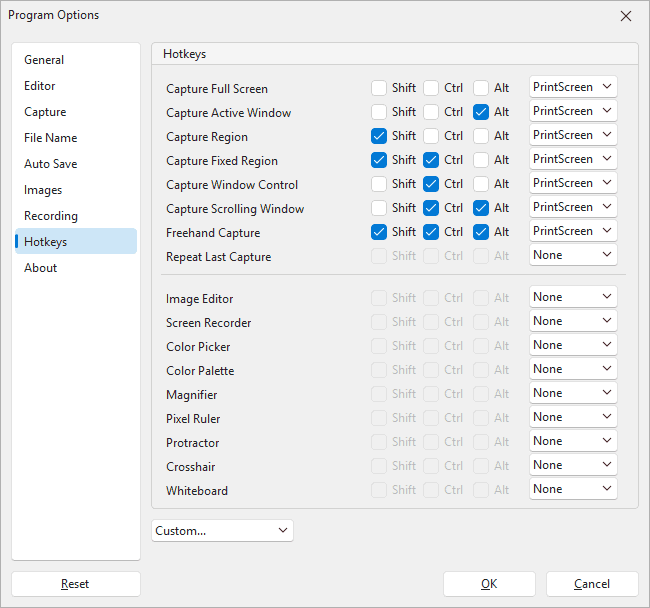
The Hotkeys page assigns keyboard shortcuts to capture actions and graphic accessories. Each shortcut is built from optional Shift, Ctrl, and Alt modifiers plus a key selection.
8.1 Capture Hotkeys
| Action |
Screenshot shortcut |
| Capture Full Screen |
PrintScreen |
| Capture Active Window |
Alt + PrintScreen |
| Capture Region |
Shift + PrintScreen |
| Capture Fixed Region |
Shift + Ctrl + PrintScreen |
| Capture Window Control |
Ctrl + PrintScreen |
| Capture Scrolling Window |
Ctrl + Alt + PrintScreen |
| Freehand Capture |
Shift + Ctrl + Alt + PrintScreen |
| Repeat Last Capture |
None |
8.2 Tool Hotkeys
The screenshot shows these tool hotkeys set to None:
- Image Editor
- Screen Recorder
- Color Picker
- Color Palette
- Magnifier
- Pixel Ruler
- Protractor
- Crosshair
- Whiteboard
8.3 Hotkey Presets
The dropdown at the bottom shows Custom.... Use it to select or manage a custom hotkey scheme.
If PicPick cannot register Print Screen shortcuts, another program may be using the key. See Hotkeys troubleshooting for Logi Options+, Snipping Tool, OneDrive, and Dropbox examples.
9. About
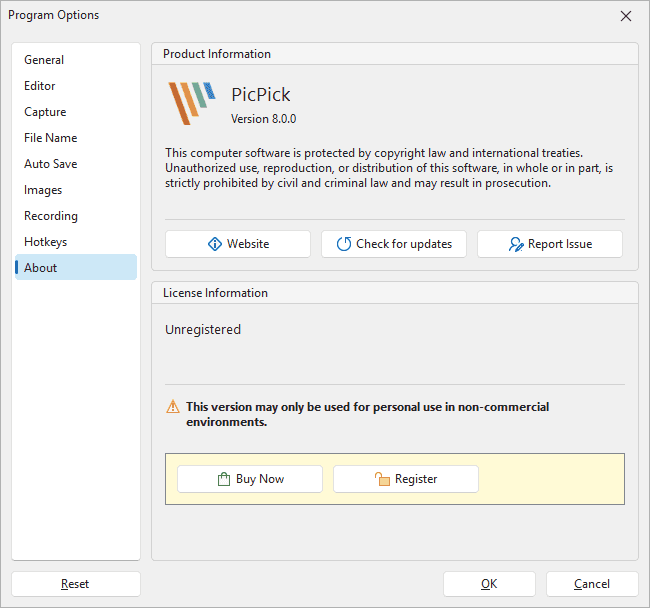
9.1 Product Information
| Item |
Screenshot value |
| Product |
PicPick |
| Version |
8.0.0 |
| Buttons |
Website, Check for updates, Report Issue |
The About page also displays the copyright and software protection notice.
9.2 License Information
| Item |
Screenshot value |
| License status |
Unregistered |
| Usage notice |
This version may only be used for personal use in non-commercial environments. |
| Buttons |
Buy Now, Register |