PicPick Help
Contents
- Home / Task Screen
- Editor
- Screen Capture
- Program Options
- Widget
- Common Workflows
- Keyboard Shortcuts
- Feature Reference
- Install HEIC/HEVC codecs
- Deployment
1. Home / Task Screen
The Home / Task Screen is the launch page for PicPick. It gives quick access to new images, existing files, screenshot capture modes, graphic accessories, program options, and program information.
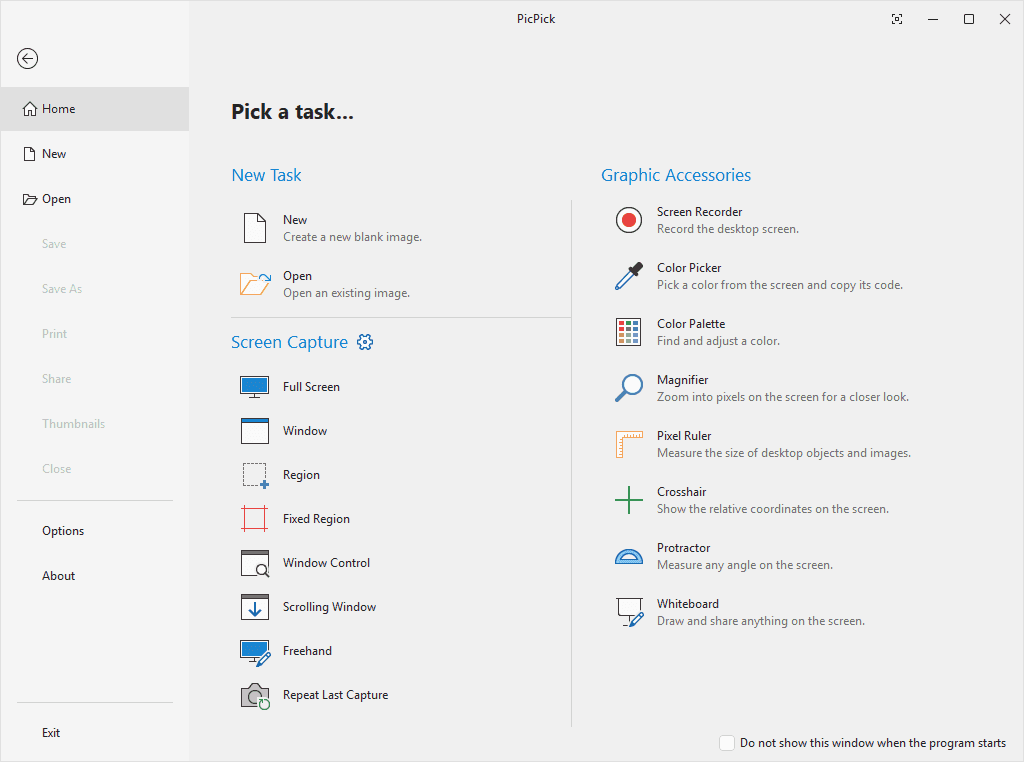
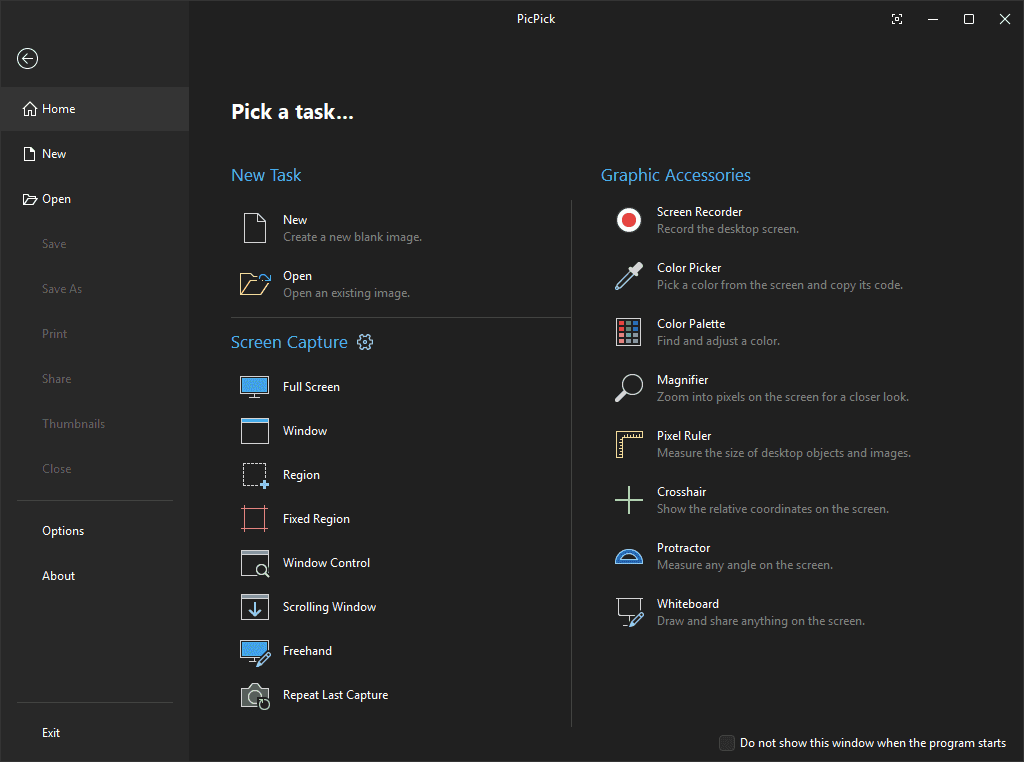
The same screen may appear in a dark theme depending on the selected appearance setting.
1.1 Left Navigation Panel
| Feature | Purpose | How to use |
|---|---|---|
| Home | Returns to the main task launcher. | Click Home to return to the page that shows New Task, Screen Capture, and Graphic Accessories. |
| New | Creates a new blank image. | Click New to create a blank canvas. PicPick may show a canvas-size dialog before opening the editor. |
| Open | Opens an existing image file. | Click Open, choose an image, and open it in the editor. |
| Save | Saves the current image. | Available when an image is open and can be saved. |
| Save As | Saves the current image as a new file, name, location, or format. | Use this when you want to keep the original file unchanged or save in another format. |
| Prints the current image. | Opens the print workflow for the active image. | |
| Share | Sends or exports the current image using supported output targets. | Use this after opening, capturing, or editing an image. |
| Thumbnails | Shows thumbnail navigation when available. | Useful when working with multiple images. |
| Close | Closes the active image or task. | Use when finished with the current document. |
| Options | Opens the Program Options window. | Configure general behavior, capture settings, editor settings, file naming, auto save, image quality, recording, hotkeys, and license information. |
| About | Opens product and license information. | Check the program version, license status, updates, website, or issue-reporting link. |
| Exit | Closes PicPick. | Use to quit the application. |
1.2 New Task
| Feature | Purpose | How to use |
|---|---|---|
| New | Creates a new blank image. | Click New and choose canvas settings if a dialog appears. |
| Open | Opens an existing image. | Click Open and select an image file from your computer. |
1.3 Screen Capture
The Screen Capture section lets you capture different parts of the desktop. Captures can be opened in the editor, saved, copied, or sent to other outputs depending on the configured output type.
| Capture mode | Purpose | Best for |
|---|---|---|
| Full Screen | Captures the entire desktop or all monitors, depending on capture options. | Full-desktop screenshots. |
| Window | Captures a selected application window. | Capturing one program without the rest of the desktop. |
| Region | Captures a rectangular area selected by dragging. | Capturing a specific portion of the screen. |
| Fixed Region | Captures a predefined rectangular size. | Repeated captures with the same dimensions. |
| Window Control | Captures a specific control or smaller element inside a window. | Capturing buttons, panes, menus, or interface components. |
| Scrolling Window | Captures scrollable content that extends beyond the visible screen. | Long web pages, documents, or panels. |
| Freehand | Captures an irregular area drawn by hand. | Capturing a custom-shaped area. |
| Repeat Last Capture | Reuses the most recent capture mode and settings. | Quickly repeating the previous capture workflow. |
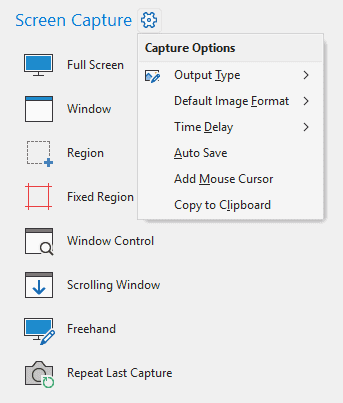
Capture Options Gear
The gear beside Screen Capture opens capture-related commands.
| Menu item | Purpose |
|---|---|
| Output Type | Chooses where a captured image goes after capture, such as the editor or another output. |
| Default Image Format | Chooses the default file format used by capture saving workflows. |
| Time Delay | Sets a delay before capture starts. This is useful for menus, tooltips, or temporary UI states. |
| Auto Save | Enables or disables automatic saving for captured images. |
| Add Mouse Cursor | Includes the mouse cursor in the captured image. |
| Copy to Clipboard | Copies the captured image to the clipboard. |
1.4 Graphic Accessories
PicPick includes tools for recording, color work, measurement, alignment, and presentation.
| Feature | Purpose | Best for |
|---|---|---|
| Screen Recorder | Records desktop activity. | Creating tutorials, demos, or short video clips. |
| Color Picker | Picks a color from the screen and copies its color code. | Matching colors from websites, apps, images, or designs. |
| Color Palette | Finds, displays, and adjusts colors. | Creating or modifying color sets. |
| Magnifier | Magnifies pixels on the screen. | Inspecting small details, icons, or alignment. |
| Pixel Ruler | Measures the size of desktop objects and images. | Checking width, height, spacing, and layout dimensions. |
| Crosshair | Shows relative screen coordinates. | Alignment and coordinate checking. |
| Protractor | Measures angles on the screen. | Checking slopes, rotations, or angled elements. |
| Whiteboard | Opens a drawing surface for presentation or explanation. | Sketching, teaching, or visually explaining ideas. |
1.5 Startup Option
| Feature | Purpose |
|---|---|
| Do not show this window when the program starts | Prevents the Home / Task Screen from appearing when PicPick starts. Use this when you prefer PicPick to start minimized, in the notification area, or directly in the editor depending on your options. |