Program Options
Open Options from the Home / Task Screen left navigation panel, from the widget tools menu, or from the editor File tab. The Program Options window has a left category list and Reset, OK, and Cancel buttons.
Contents
- General
- Editor
- Capture
- File Name
- Auto Save
- Images
- Recording
- Hotkeys
- About
1. General
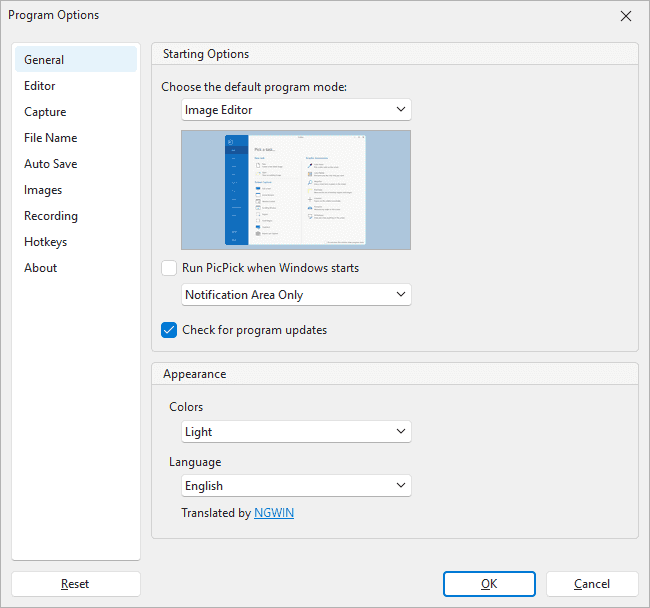
1.1 Starting Options
| Setting |
Screenshot value |
Description |
| Choose the default program mode |
Image Editor |
Sets what PicPick opens when it launches. The dropdown can be used to choose another startup mode such as the Home / Task Screen. |
| Run PicPick when Windows starts |
Unchecked |
Starts PicPick automatically when Windows starts. |
| Startup mode |
Notification Area Only |
Controls how PicPick appears at startup. Notification Area Only keeps it available from the system tray instead of opening a full window. |
| Check for program updates |
Checked |
Allows PicPick to check for newer versions. |
1.2 Appearance
| Setting |
Screenshot value |
Description |
| Colors |
Light |
Sets the PicPick interface theme. |
| Language |
English |
Sets the interface language. |
| Translated by |
NGWIN |
Shows translation credit for the selected language. |
2. Editor
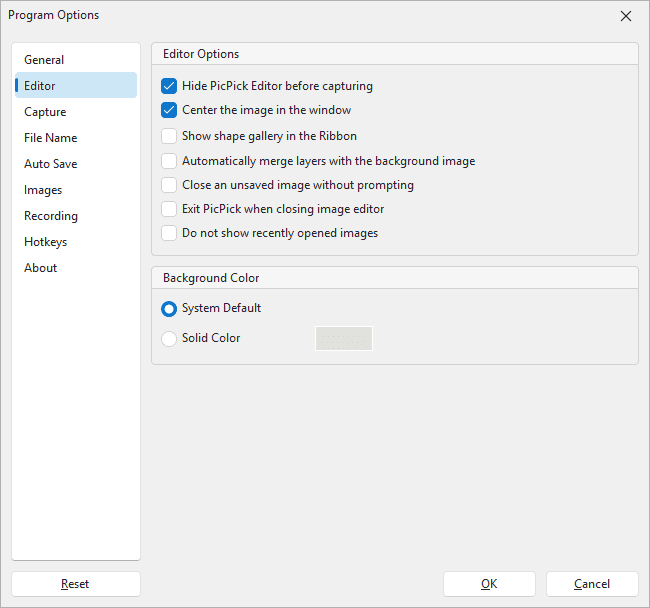
2.1 Editor Options
| Setting |
Screenshot state |
Description |
| Hide PicPick Editor before capturing |
Checked |
Hides the editor window before a screenshot is taken so it does not appear in the capture. |
| Center the image in the window |
Checked |
Centers opened images in the editor workspace. |
| Show shape gallery in the Ribbon |
Unchecked |
Shows a shape gallery in the ribbon when enabled. |
| Automatically merge layers with the background image |
Unchecked |
Merges annotation layers into the background image automatically. |
| Close an unsaved image without prompting |
Unchecked |
Allows unsaved images to close without a confirmation prompt. |
| Exit PicPick when closing image editor |
Unchecked |
Exits PicPick when the editor closes. |
| Do not show recently opened images |
Unchecked |
Hides the recent image list. |
2.2 Background Color
| Setting |
Screenshot state |
Description |
| System Default |
Selected |
Uses the system default workspace background color. |
| Solid Color |
Not selected |
Uses a custom workspace background color. The color box is enabled when this option is selected. |
3. Capture
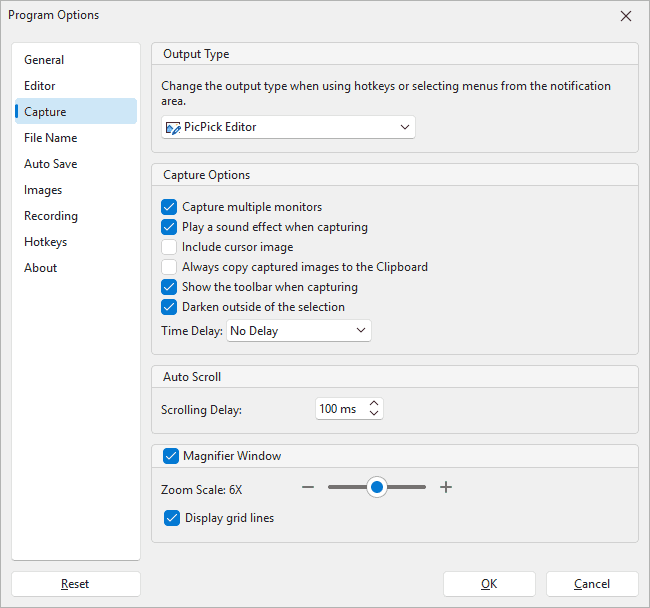
3.1 Output Type
| Setting |
Screenshot value |
Description |
| Output Type |
PicPick Editor |
Controls where screenshots go when using hotkeys or notification-area menus. The screenshot shows captures opening in the editor. |
3.2 Capture Options
| Setting |
Screenshot state/value |
Description |
| Capture multiple monitors |
Checked |
Includes multiple monitors when capturing the full desktop. |
| Play a sound effect when capturing |
Checked |
Plays a sound when a capture is taken. |
| Include cursor image |
Unchecked |
Includes the mouse cursor in captured images when enabled. |
| Always copy captured images to the Clipboard |
Unchecked |
Copies every capture to the clipboard in addition to the selected output. |
| Show the toolbar when capturing |
Checked |
Shows a capture toolbar during selection-based captures. |
| Darken outside of the selection |
Checked |
Dims the area outside the selected capture region. |
| Time Delay |
No Delay |
Adds a delay before a capture starts. |
3.3 Auto Scroll
| Setting |
Screenshot value |
Description |
| Scrolling Delay |
100 ms |
Sets the delay between automatic scroll steps during scrolling-window capture. Raise it if a scrolling capture has gaps or repeated parts. See Scrolling Window. |
3.4 Magnifier Window
| Setting |
Screenshot state/value |
Description |
| Magnifier Window |
Checked |
Shows a magnified preview during capture selection. |
| Zoom Scale |
6X |
Sets the magnification level. |
| Display grid lines |
Checked |
Displays grid lines in the magnifier window. |
4. File Name
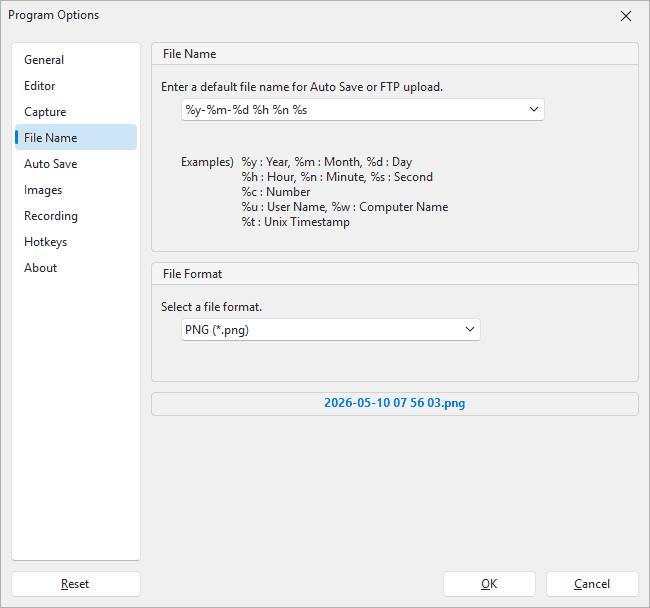
4.1 File Name Pattern
The File Name page sets the default file name used for Auto Save or FTP upload.
| Setting |
Screenshot value |
Description |
| Default file name |
%y-%m-%d %h %n %s |
Defines the automatic name pattern. |
| Example output |
2026-05-10 07 56 03.png |
Shows the resulting file name preview. |
| Variable |
Inserts |
%y |
Year |
%m |
Month |
%d |
Day |
%h |
Hour |
%n |
Minute |
%s |
Second |
%c |
Number |
%u |
User Name |
%w |
Computer Name |
%t |
Unix Timestamp |
4.2 File Format
| Setting |
Screenshot value |
Description |
| Select a file format |
PNG (*.png) |
Sets the default file format for saved captures. |
5. Auto Save
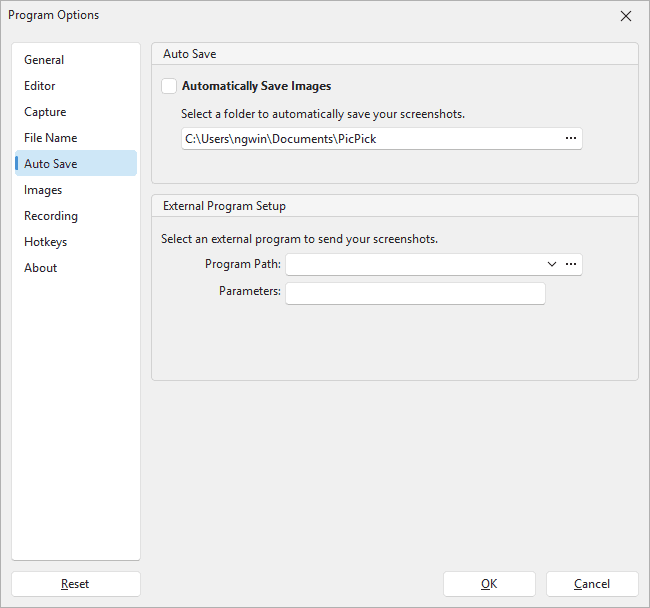
5.1 Auto Save
| Setting |
Screenshot state/value |
Description |
| Automatically Save Images |
Unchecked |
Saves captured images automatically when enabled. |
| Folder |
C:\Users\ngwin\Documents\PicPick |
Destination folder for auto-saved screenshots. |
| Browse button (...) |
Visible |
Opens a folder picker. |
5.2 External Program Setup
| Setting |
Purpose |
| Program Path |
Selects an external program to receive screenshots. |
| Parameters |
Sets command-line parameters passed to the external program. |
6. Images
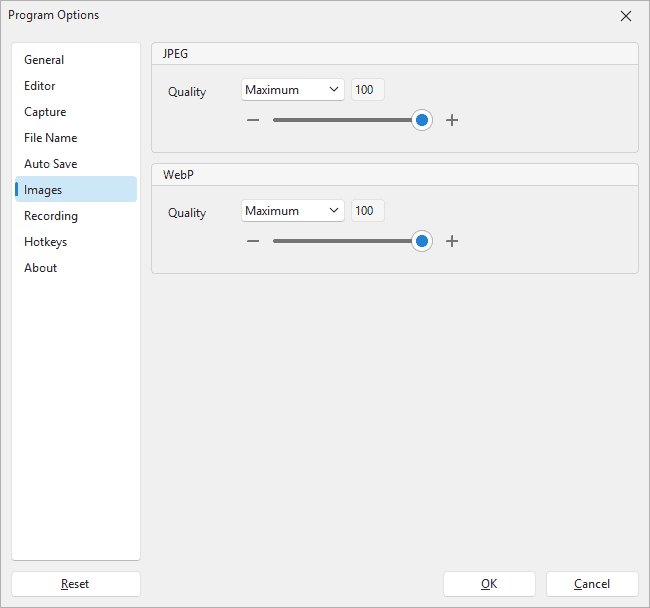
6.1 JPEG
| Setting |
Screenshot value |
Description |
| Quality |
Maximum, 100 |
Controls JPEG compression quality. Higher values produce higher quality and larger files. |
6.2 WebP
| Setting |
Screenshot value |
Description |
| Quality |
Maximum, 100 |
Controls WebP compression quality. Higher values produce higher quality and larger files. |
7. Recording
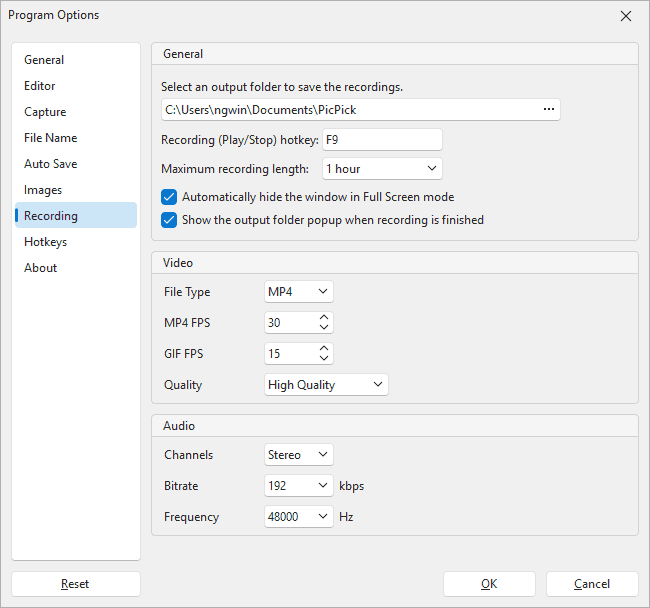
7.1 General
| Setting |
Screenshot value |
Description |
| Output folder |
C:\Users\ngwin\Documents\PicPick |
Folder where recordings are saved. |
| Recording (Play/Stop) hotkey |
F9 |
Starts and stops recording. |
| Maximum recording length |
1 hour |
Stops recording automatically after the selected limit. |
| Automatically hide the window in Full Screen mode |
Checked |
Hides the recorder window during full-screen recording. |
| Show the output folder popup when recording is finished |
Checked |
Opens or shows the output folder after recording finishes. |
7.2 Video
| Setting |
Screenshot value |
Description |
| File Type |
MP4 |
Selects the recording output format. |
| MP4 FPS |
30 |
Frame rate for MP4 recordings. |
| GIF FPS |
15 |
Frame rate for GIF recordings. |
| Quality |
High Quality |
Sets recording quality. Higher quality usually creates larger files. |
7.3 Audio
| Setting |
Screenshot value |
Description |
| Channels |
Stereo |
Records two audio channels. |
| Bitrate |
192 kbps |
Sets audio bitrate. |
| Frequency |
48000 Hz |
Sets audio sample rate. |
8. Hotkeys
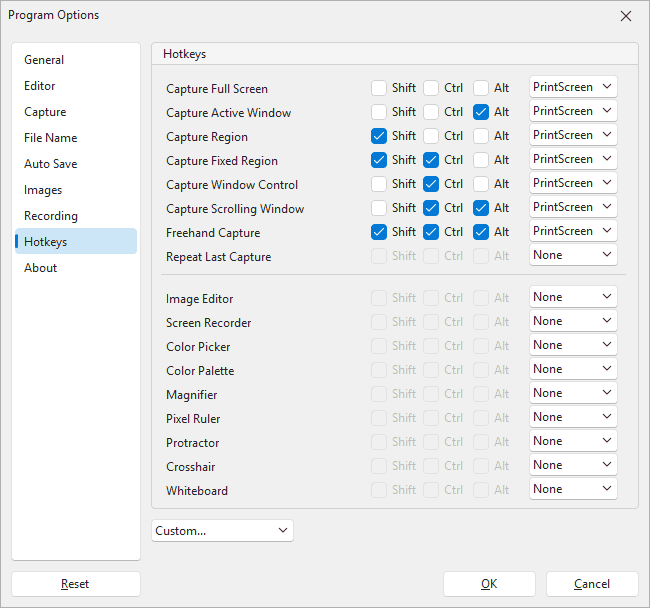
The Hotkeys page assigns keyboard shortcuts to capture actions and graphic accessories. Each shortcut is built from optional Shift, Ctrl, and Alt modifiers plus a key selection.
8.1 Capture Hotkeys
| Action |
Screenshot shortcut |
| Capture Full Screen |
PrintScreen |
| Capture Active Window |
Alt + PrintScreen |
| Capture Region |
Shift + PrintScreen |
| Capture Fixed Region |
Shift + Ctrl + PrintScreen |
| Capture Window Control |
Ctrl + PrintScreen |
| Capture Scrolling Window |
Ctrl + Alt + PrintScreen |
| Freehand Capture |
Shift + Ctrl + Alt + PrintScreen |
| Repeat Last Capture |
None |
8.2 Tool Hotkeys
The screenshot shows these tool hotkeys set to None:
- Image Editor
- Screen Recorder
- Color Picker
- Color Palette
- Magnifier
- Pixel Ruler
- Protractor
- Crosshair
- Whiteboard
From PicPick 7.7.0 the list also includes Extract Text, which has no hotkey by default.
8.3 Hotkey Presets
The dropdown at the bottom shows Custom.... Use it to select or manage a custom hotkey scheme.
If PicPick cannot register Print Screen shortcuts, another program may be using the key. See Hotkeys troubleshooting for Logi Options+, Snipping Tool, OneDrive, and Dropbox examples.
9. About
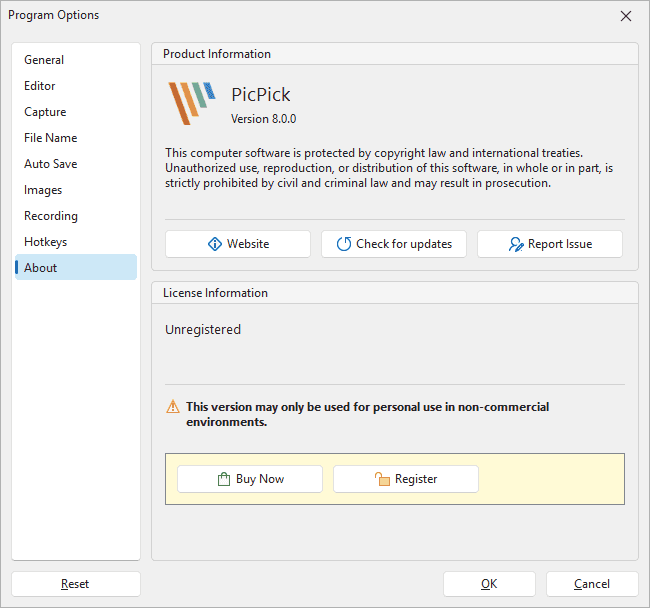
9.1 Product Information
| Item |
Screenshot value |
| Product |
PicPick |
| Version |
8.0.0 |
| Buttons |
Website, Check for updates, Report Issue |
The About page also displays the copyright and software protection notice.
9.2 License Information
| Item |
Screenshot value |
| License status |
Unregistered |
| Usage notice |
This version may only be used for personal use in non-commercial environments. |
| Buttons |
Buy Now, Register |