Hotkeys and Print Screen Troubleshooting
Use the hotkeys below to start PicPick capture modes from the keyboard. If PicPick cannot register a Print Screen shortcut, another program may already be using the key.
1. Default Capture Hotkeys
| Type | Description | Default shortcut |
|---|---|---|
| Full-screen | Captures the entire desktop. | PrintScreen |
| Active Window | Captures the currently active window. | Alt + PrintScreen |
| Window Control | Captures a specific window control or UI element. | Ctrl + PrintScreen |
| Scrolling Window | Captures a window or area with scrolling content. | Ctrl + Alt + PrintScreen |
| Region | Captures a rectangular region you select on the screen. | Shift + PrintScreen |
| Fixed Region | Captures a predefined rectangular region. | Shift + Ctrl + PrintScreen |
| Freehand | Captures a region by drawing a freehand shape. | Shift + Ctrl + Alt + PrintScreen |
| Repeat Last Capture | Reuses the previous capture settings. | None |
2. Why PicPick May Not Register Print Screen
Some programs assign the Print Screen key to their own screenshot feature. When that happens, PicPick may not be able to use the same shortcut until the other program releases it.
Common programs that can intercept Print Screen include:
3. Logi Options+
Logi Options+ may assign the Print Screen key to its own Screen Capture action. Change the assignment back to Print screen.
3.1 Select the Logitech device
- Open Logi Options+.
- Select the keyboard or mouse device you want to configure.
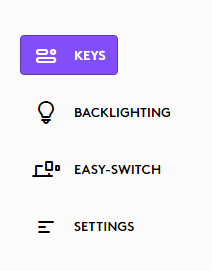
- Open the Keys or Buttons section.
3.2 Select the Print Screen key
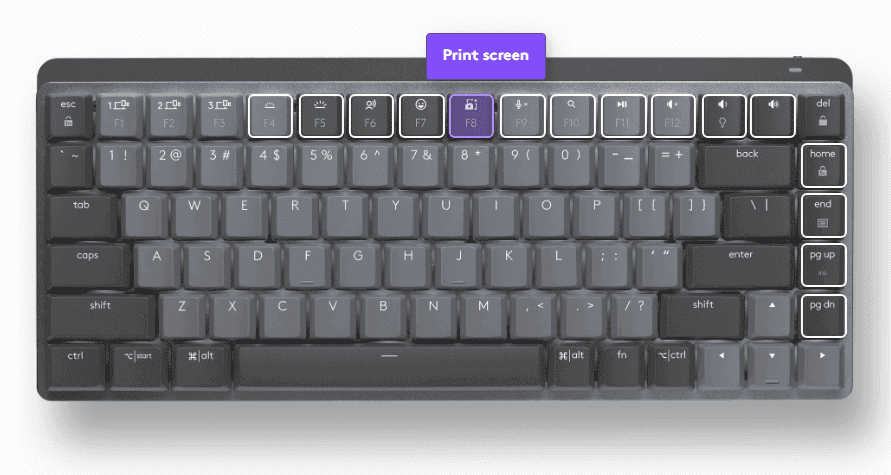
- Find the Print screen key in the keyboard diagram.
- Click that key to edit its assignment.
3.3 Change the assignment
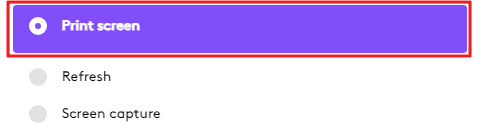
- In the assignment panel, select Print screen instead of Screen capture.
- Confirm that the key is no longer assigned to Logi's own screen capture action.

3.4 Confirm Print screen is selected
The screenshot shows Print screen selected above other choices such as Refresh and Screen capture.
4. Windows Snipping Tool
Windows can use the Print Screen key to open screen capture. Turn that setting off so PicPick can use the key.

- Open Windows Settings.
- Go to Accessibility > Keyboard.
- Find the On-screen keyboard, access keys, and Print Screen section.
- Turn off the setting that uses the Print Screen key to open screen capture.
- Restart PicPick or reapply the PicPick hotkey if needed.
5. OneDrive
OneDrive can automatically save screenshots and take over screenshot behavior.
5.1 Open OneDrive settings
- In the notification area, right-click the OneDrive icon.
- Open Settings.

5.2 Disable automatic screenshot saving
- Open the Backup tab.
- Uncheck Automatically save screenshots I capture to OneDrive.
- Click OK.
- If the option is already unchecked but PicPick still cannot register the key, check it, click OK, then reopen settings and uncheck it again.

6. Dropbox
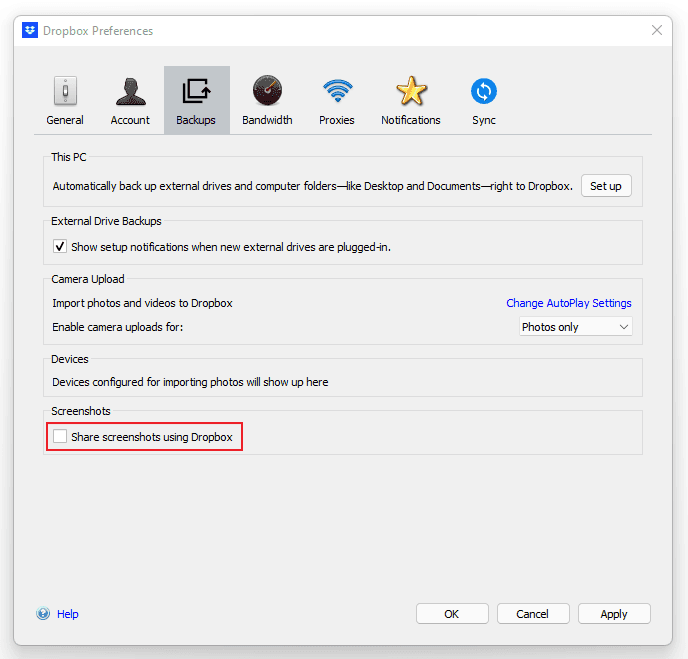
Dropbox can also intercept screenshots when screenshot sharing is enabled.
6.1 Open Dropbox preferences
- In the notification area, right-click the Dropbox icon.
- Click the account or profile icon.
- Choose Preferences.

6.2 Disable screenshot sharing
- Open the Backups tab.
- Uncheck Share screenshots using Dropbox.
- Click Apply.